
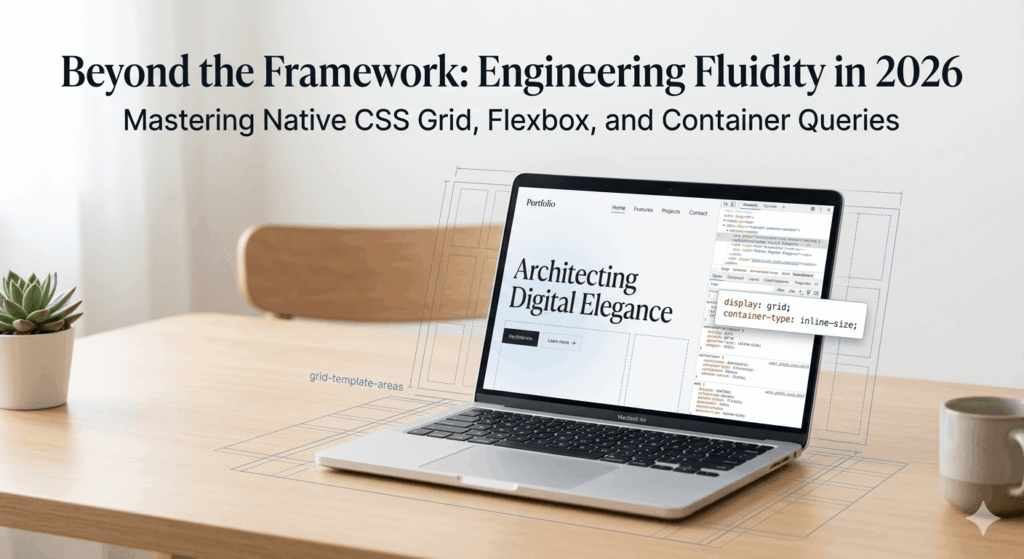
Take a look at this modern portfolio landing page we’ll build in this tutorial. It features a glassmorphism hero section, a responsive navigation bar, and a dynamic project gallery built with a stylish bento-style layout. Everything adapts smoothly across screen sizes—from mobile devices to large desktop displays.
Now here’s the interesting part. This entire layout was built using only pure CSS Grid and Flexbox. No frameworks. No Bootstrap. No Tailwind. And no layout libraries. Just modern CSS and semantic HTML.
Modern browsers have evolved significantly, and today CSS provides powerful layout systems that make many frameworks optional. By writing clean, native CSS, we can build layouts that are: faster to load, easier to maintain, and much more flexible.
In this tutorial, you’ll learn how to: Architect a hero section using Flexbox. Build a responsive portfolio grid with CSS Grid. Create a modern bento-style layout. Add subtle animations and hover interactions. And design a fully responsive landing page without relying on frameworks.
So, if you want to master modern layout techniques and build professional websites using just native CSS, let’s get started.
Section 1: Why Framework-Free CSS Matters in 2026
The Traditional Approach
For many years, web designers relied heavily on frameworks like Bootstrap or Tailwind CSS to build responsive layouts. These frameworks helped solve problems like grid systems, spacing, and mobile responsiveness. And for a long time, they were extremely useful. But modern CSS has evolved dramatically.
Today, modern browsers support powerful native layout tools such as: Flexbox for one-dimensional layouts. CSS Grid for two-dimensional layouts. Container queries for responsive components. Fluid typography using clamp().
These features allow developers to build complex layouts directly with CSS—without depending on heavy frameworks.
Performance Advantages
When you remove large framework dependencies, your website becomes significantly lighter. That means: smaller CSS files, faster page rendering, and better performance metrics.
Performance metrics like Core Web Vitals reward fast and efficient websites.
Developer Control
Writing your own CSS also gives you complete control over your layout. Instead of overriding dozens of predefined classes, you build exactly what your design requires. This leads to: cleaner HTML, more predictable styling, and easier debugging.
In this tutorial, we’ll take advantage of modern CSS to build a professional portfolio landing page from scratch. You’ll learn how to combine: Flexbox for flexible alignment, CSS Grid for advanced layouts, and modern responsive techniques. All without relying on any frameworks. Let’s begin by setting up our project structure.
Section 2: Project Setup & Folder Structure
Creating the Project Folder
Let’s start by creating a clean project structure. Inside our main folder called portfolio-landing-page, we’ll create:
- an index.html file for our page structure
- a css folder for our styles
- An images folder for project visuals
- and an assets folder for any additional media like icons or fonts.
Organizing files this way keeps our project scalable and easy to maintain.
Creating the HTML File
Now let’s create the HTML foundation for our portfolio landing page. We’ll start with a modern HTML5 document structure and then add the main layout sections we’ll build later. Open the index.html page, copy and paste the following starter HTML Template.
HTML Starter Template
<!DOCTYPE html>
<html lang="en">
<head>

<meta charset="UTF-8">
<meta name="viewport" content="width=device-width, initial-scale=1.0">

<title>Modern Portfolio Landing Page</title>

<meta name="description" content="A modern portfolio landing page built using pure CSS Grid and Flexbox.">

<link rel="stylesheet" href="css/styles.css">

</head>

<body>

<header class="site-header">

<nav class="navbar">

<div class="logo">MyPortfolio</div>

<ul class="nav-links">
<li><a href="#">Home</a></li>
<li><a href="#">Projects</a></li>
<li><a href="#">About</a></li>
<li><a href="#">Contact</a></li>
</ul>

</nav>

</header>

<main>

<section class="hero">

<div class="hero-content">
<h1>Designing the Future with Modern CSS</h1>
<p>Clean layouts powered by CSS Grid and Flexbox.</p>
<a href="#" class="cta-button">View My Work</a>
</div>

</section>

<section class="portfolio">

<h2>Featured Projects</h2>

<div class="portfolio-grid">

<!-- Project cards will go here -->

</div>

</section>

</main>

<footer class="site-footer">

<p>© 2026 MyPortfolio. All rights reserved.</p>

</footer>

</body>
</html>
This structure uses modern semantic HTML elements. We have:
- a header for navigation
- a main section for the core content
- a hero section for the landing introduction
- a portfolio section for showcasing projects
- and a footer for site information.
These elements improve accessibility and help search engines understand the page structure.
We’ve also linked our external stylesheet where we’ll write all our CSS. In the next section, we’ll begin creating our global design tokens and base styles to power the entire layout.
Section 3: Creating Global Design Tokens
In this section, we’ll create a global design using modern CSS architecture used by professional teams in 2026, including: CSS reset strategy, Design tokens, Fluid typography, Layout containers, and Base styling system. This section also prepares the project for everything that follows in this tutorial.
Why Design Tokens Matter
Before we begin designing the layout, we need to establish a consistent design system. Modern CSS projects use something called design tokens.
Design tokens are reusable variables that define things like colors, typography, spacing, border radius, and layout sizes.
Instead of repeating values across our CSS, we define them once and reuse them everywhere.
1. Adding a Modern CSS Reset
Now, let’s add the following browser reset code to our styles.css file.
/* =========================
   CSS BASE RESET
========================= */

*,
*::before,
*::after{
box-sizing:border-box;
margin:0;
padding:0;
}

html{
scroll-behavior:smooth;
}

body{
min-height:100vh;
line-height:1.6;
-webkit-font-smoothing:antialiased;
}

img,
picture,
video,
canvas{
max-width:100%;
display:block;
}

a{
text-decoration:none;
color:inherit;
}

ul{
list-style:none;
}
This reset removes inconsistent browser defaults and gives us a clean baseline for our layout. The code removes default margins, paddings, and styles across elements, ensuring consistency across different browsers. It also sets up a clean baseline by normalizing typography, media sizing, and link and list behavior so we can build a design system without interference from browser defaults
2. Defining Global Design Tokens
Next to the base reset code, add the following CSS variables to set the default colors, typography and spacing.
/* =========================
   DESIGN TOKENS
========================= */
:root{
  /* COLORS */
  --color-primary: oklch(58.9% 0.232 282.7);
  --color-secondary: oklch(65.2% 0.245 310.1);

  /* Background and surface switch between light/dark */
  --color-bg: light-dark(oklch(97% 0.003 260), oklch(18.1% 0.031 260));
  --color-surface: light-dark(oklch(92% 0.005 260), oklch(22.5% 0.028 260));
  /* Text switches for readability */
  --color-text: light-dark(oklch(15% 0.02 260), oklch(97% 0.003 260));
  --color-muted: light-dark(oklch(40% 0.01 260), oklch(70% 0.003 260));

/* TYPOGRAPHY */

--font-main: system-ui, -apple-system, sans-serif;

--fs-xl: clamp(2.5rem, 5vw, 4rem);
--fs-lg: clamp(1.5rem, 3vw, 2rem);
--fs-md: clamp(1rem, 2vw, 1.2rem);


/* SPACING */

--space-sm:0.5rem;
--space-md:1rem;
--space-lg:2rem;
--space-xl:4rem;


/* LAYOUT */

--container-width:1200px;


/* EFFECTS */

--radius:12px;
--transition:0.3s ease;

}
These tokens define our entire design system for the site. For example,
- The Color tokens (–color-*): Controls the brand colors. Using OKLCH + light-dark() ensures perceptual consistency and automatic theme switching.
- Typography (–font-main, –fs-*): Set the base font family and fluid font sizes with clamp() for responsive scaling.
- Spacing (–space-*): Standardize margins and paddings across components for consistent rhythm.
- Layout (–container-width): Controls the maximum width of content containers.
- Effects (–radius, –transition): Define border radius for rounded corners and transition timing for smooth animations.
These tokens create a single source of truth for our design system. Instead of hard‑coding values everywhere, we reference variables, making our CSS easier to maintain, theme, and scale.
3. Creating Base Styles
Now apply these tokens to the page to create the base styles. Open styles.css file and add the following CSS.
/* =========================
   BASE STYLES
========================= */

body{
font-family:var(--font-main);
background:var(--color-bg);
color:var(--color-text);
padding-inline:var(--space-md);
}

h1{
font-size:var(--fs-xl);
line-height:1.2;
}

h2{
font-size:var(--fs-lg);
margin-bottom:var(--space-lg);
}

p{
font-size:var(--fs-md);
color:var(--color-muted);
}

section{
padding-block:var(--space-xl);
}
These base styles apply our tokens across the entire website, ensuring consistency.
4. Creating a Responsive Container System
Professional sites use containers. So, add the following styles to create a consistent layout across devices.
/* =========================
   CONTAINER SYSTEM
========================= */
.container{
max-width:var(--container-width);
margin-inline:auto;
}
This container keeps content centered and prevents layouts from stretching too wide on large screens.
max-width: var(–container-width) ensures the content never stretches wider than our design’s intended width of 1200px.
margin-inline: auto centers the container within the viewport, keeping layouts balanced.
5. Preparing for Layout Sections
Finally, let’s add the following styles for our placeholder classes.
/* =========================
   LAYOUT PLACEHOLDERS
========================= */

.hero{
min-height:90vh;
}

.portfolio{
text-align:center;
}
Now that our design tokens and base styles are in place, we’re ready to start building the hero section using Flexbox.
Section 4: Building the Hero Section with Flexbox
The goal of this section is to:
- Build a modern hero landing section
- Use Flexbox for vertical alignment
- Create a glassmorphism hero card
- Add a call-to-action button
- Keep the layout fully responsive
1. Update the HTML Hero Section
First, let’s update the HTML code of our hero section. Open index.html and replace the hero section with this HTML structure.
<section class="hero">

<div class="container hero-wrapper">

<div class="hero-content">

<h1>Designing the Future with Modern CSS</h1>

<p>
Clean, responsive layouts powered only by CSS Grid and Flexbox.
No frameworks. Just modern web architecture.
</p>

<div class="hero-actions">

<a href="#" class="btn-primary">View Projects</a>

<a href="#" class="btn-secondary">Contact Us</a>

</div>

</div>

</div>

</section>
We’re wrapping our content inside a container so it stays centered on large screens. Inside the hero section, we create:
- the main headline
- a description paragraph
- and two call-to-action buttons.
2. Create the Hero Layout with Flexbox
Now, open styles.css and add the following CSS to create the hero layout.
/* =========================
   HERO SECTION
========================= */

.hero {
  display: flex;
  align-items: center;
  min-height: 90vh;

  background: linear-gradient(
    180deg,
    var(--color-surface) 30%,
    var(--color-bg) 100%
  );
}
Here we use Flexbox to vertically align our hero content.
The property align-items: center ensures the content sits perfectly in the middle of the viewport.
3. Create the Hero Wrapper
Now, add the following CSS to create the hero-wrapper.
.hero-wrapper{

display:flex;

align-items:center;

justify-content:flex-start;

width:100%;

}
This wrapper helps us control spacing and alignment for the hero content.
4. Style the Hero Content Card
Now add the glassmorphism panel with the following CSS properties.
.hero-content {
  max-width: 650px;
  padding: var(--space-xl);
  background: oklch(97% 0.003 260 / 0.05);   /* translucent light background */
  backdrop-filter: blur(16px);
  border-radius: var(--radius);
  border: 1px solid oklch(97% 0.003 260 / 0.08); /* subtle border */
}
This effect is called glassmorphism. We achieve it using transparent backgrounds, backdrop-filter: blur, and soft borders. This style is popular in modern interfaces such as operating systems and dashboards.
5. Style the Hero Text
Add typography adjustments to the hero content using this CSS.
.hero-content h1{
margin-bottom:var(--space-md);
}

.hero-content p{
margin-bottom:var(--space-lg);
max-width:50ch;
}
We also limit the paragraph width using character units so the text remains readable.
6. Create the Button Layout
Add the following CSS for the buttons of the Hero section.
.btn-primary{
padding:0.8rem 1.6rem;
background:var(--color-primary);
border-radius:var(--radius);
color:white;
font-weight:600;
transition:var(--transition);
}

.btn-primary:hover{ /*Hover effect: */
transform:translateY(-2px);
opacity:0.9;
}

.btn-secondary{
padding:0.8rem 1.6rem;
border:1px solid var(--color-secondary);
border-radius:var(--radius);
color:var(--color-text);
transition:var(--transition);
}

.btn-secondary:hover{ /*Hover effect: */
background:var(--color-secondary);
color: white;
}
This allows the buttons to sit side-by-side on larger screens and wrap naturally on smaller screens.
7. Add a Hero Background Image
Let’s update the hero section to include a background image. This will enhance the hero visually. Update the entire hero section CSS code with the following, and ensure that you have an image named hero-bg.jpg in your images folder.
.hero{
display:flex;
align-items:center;
min-height:90vh;
background-image: image-set(
    url("../images/hero-bg.avif") type("image/avif"),
    url("../images/hero-bg.webp") type("image/webp"),
    url("../images/hero-bg.jpg") type("image/jpeg")
  );background-size:cover;
background-position:center;
position:relative;
}

.hero-wrapper{

display:flex;
align-items:center;
justify-content:flex-start;
width:100%;

}

/* Create Glassmorphism effect */
.hero-content {
  max-width: 650px;
  padding: var(--space-xl);
  background: oklch(97% 0.003 260 / 0.25);   /* translucent light background */
  backdrop-filter: blur(16px);
  border-radius: var(--radius);
  border: 1px solid oklch(97% 0.003 260 / 0.08); /* subtle border */
}

/* Adjust Hero Content Typography */
.hero-content h1{
margin-bottom:var(--space-md);
}

.hero-content p{
margin-bottom:var(--space-lg);
max-width:50ch;
color: whitesmoke;

}

/* Add Overlay */
.hero::before{
content:"";
position:absolute;
inset:0;
background: oklch(0% 0 0 / 0.45);

}

.hero-wrapper{
position:relative;
}

/* Code the buttons of the Hero */
.hero-actions{
display:flex;
gap:var(--space-md);
flex-wrap:wrap;
}
.btn-primary{
padding:0.8rem 1.6rem;
background:var(--color-primary);
border-radius:var(--radius);
color:white;
font-weight:600;
transition:var(--transition);
}

.btn-primary:hover{ /*Hover effect: */
transform:translateY(-2px);
opacity:0.9;
}

.btn-secondary{
padding:0.8rem 1.6rem;
border:1px solid var(--color-secondary);
border-radius:var(--radius);
color:var(--color-primary);
transition:var(--transition);
}

.btn-secondary:hover{ /*Hover effect: */
background:var(--color-secondary);
color: white;
}
This entire code including the overlay improves text readability on top of the hero image. When you’re done, preview the webpage you’ve created. Notice the hero section filling the screen, its centered content, the glassmorphism card, and responsive buttons. Resize the browser window to demonstrate responsiveness.
Flexbox is perfect for the above results. It helps us to achieve vertical centering, alignment, and flexible content flow in all devices.
Section 5: Responsive Navigation Bar with Flexbox
In this section, we’ll:
- Build a modern responsive navigation.
- Use Flexbox for layout.
- Implement a mobile hamburger menu.
- Use <details> and <summary> for a CSS-only toggle.
- Add a popover navigation panel.
If you’re ready, let’s keep going.
1. Update the Navigation HTML
First, we’ll update the nav HTML code we created earlier. Open index.html and replace the navigation inside <header> with this structure.
<header class="site-header">
  <nav class="navbar container">
    <div class="logo">Kmacims <span>EAT</span></div>

    <!-- Desktop Navigation -->
    <ul class="nav-links desktop">
      <li><a href="#">Home</a></li>
      <li><a href="#">Projects</a></li>
      <li><a href="#">About</a></li>
      <li><a href="#">Contact</a></li>
    </ul>

    <!-- Mobile Navigation -->
    <details class="nav-menu mobile">
      <summary class="nav-toggle">
        <span></span>
        <span></span>
        <span></span>
      </summary>
      <ul class="nav-links mobile">
        <li><a href="#">Home</a></li>
        <li><a href="#">Projects</a></li>
        <li><a href="#">About</a></li>
        <li><a href="#">Contact</a></li>
      </ul>
    </details>
  </nav>
</header>
In modern HTML we can create collapsible navigation menus using the <details> and <summary> elements.
These elements allow us to build an interactive toggle without writing any JavaScript.
The summary element acts as the hamburger button, while the navigation links sit inside the dropdown container.
2. Create the Navigation Layout with Flexbox
Now, open styles.css and add the following code to style the navigation section.
/* =========================
   NAVIGATION
========================= */

.site-header {
  position: sticky;
  top: 0;
  z-index: 1000;
 /* background: oklch(4% 0.01 260 / 0.6);
  backdrop-filter: blur(12px);*/
}

.navbar {
  display: flex;
  align-items: center;
  justify-content: space-between;
  min-height: 70px;
}

/* Logo */
.logo {
  font-weight: 700;
  font-size: 1.3rem;
  letter-spacing: 0.5px;
}

/* Hide Default <summary> Marker */
.nav-toggle {
  list-style: none;
  cursor: pointer;
}

.nav-toggle::-webkit-details-marker {
  display: none;
}

/* Hamburger Icon */
.nav-toggle {
  display: flex;
  flex-direction: column;
  gap: 5px;
}

.nav-toggle span {
  width: 26px;
  height: 2px;
  background: var(--color-primary);
  display: block;
}

/* Navigation Links (shared styles) */
.nav-links {
  gap: var(--space-lg);
}

.nav-links a {
  font-size: 0.95rem;
  color: var(--color-text);
  transition: var(--transition);
}

.nav-links a:hover {
  color: var(--color-primary);
}

/* =========================
   Desktop Navigation
========================= */
.nav-links.desktop {
  display: flex; /* always visible */
}

/* Hide mobile menu on desktop */
@media (min-width: 769px) {
  .nav-menu.mobile {
    display: none;
  }
}

/* =========================
   Mobile Navigation
========================= */
@media (max-width: 768px) {
  /* Hide desktop links */
  .nav-links.desktop {
    display: none;
  }

  /* Show mobile menu */
  .nav-menu.mobile {
    display: block;
  }

  .nav-links.mobile {
    position: absolute;
    top: 70px;
    right: 20px;
    flex-direction: column;
    background: var(--color-surface);
    padding: var(--space-lg);
    border-radius: var(--radius);
    min-width: 200px;
    box-shadow: 0 10px 30px oklch(0% 0 0 / 0.3);
    display: none;
    opacity: 0;
    transform: translateY(-10px);
    transition: 0.25s ease;
  }

  /* Reveal when <details> is open */
  .nav-menu[open] .nav-links.mobile {
    display: flex;
    opacity: 1;
    transform: translateY(0);
  }

  /* Adjust mobile layout */
  .navbar {
    padding-inline: var(--space-md);
  }
}
We use Flexbox here to distribute space between the logo and the navigation menu.
The header is also sticky, which means it stays visible while users scroll.
We also used the <span> within the <summary> element to create the classic three-line hamburger icon. On larger screens, the navigation links are visible by default.
The open attribute is automatically applied when the user clicks the summary element. This allows us to show or hide the menu purely with CSS.
Preview the site to see the navigation in action on different devices. Flexbox helps us align navigation items, distribute space, and maintain responsive layouts.
Meanwhile the <details> element allows us to create interactive menus without JavaScript. The site now feels much more like a real production website.
Section 6: Scroll-Driven Animations with Modern CSS
This is one of the most exciting modern CSS features of 2026, and viewers love seeing it. The goal of this section is to:
- Add smooth entrance animations as elements appear on screen.
- Use modern CSS scroll-driven animation properties.
- Avoid JavaScript animation libraries.
- Create subtle motion that improves user experience.
1. Introducing Scroll-Driven Animations
Modern browsers now support scroll-driven animations directly in CSS. Instead of relying on JavaScript animation libraries, we can trigger animations when elements enter the viewport using built-in CSS properties.
This keeps our site lightweight and improves performance.
2. Create the Animation Keyframes
Open styles.css and add the following styles to make the site dynamic.
/* =========================
   SCROLL ANIMATIONS
========================= */
/* Add animation keyframes */

@keyframes fade-slide-up{

from{
opacity:0;
transform:translateY(40px);
}

to{
opacity:1;
transform:translateY(0);
}

}

/* Add animation to the hero section */
.hero-content{
animation:fade-slide-up 0.8s ease forwards;

}
/* Add viewport-triggered animation behavior. */
.hero-content,
.portfolio h2,
.portfolio-grid{

animation:fade-slide-up 0.9s ease both;
animation-timeline:view();
animation-range:entry 0% cover 40%;

}
This animation simply fades elements in while sliding them slightly upward. Subtle animations like this feel natural and professional.
When the page loads, the hero content animates into place. This helps guide the viewer’s attention toward the headline and call-to-action.
The animation-timeline: view() Links the animation to the viewport scrolling timeline, and animation-range Controls when the animation begins and ends during scrolling.
This tells the browser to trigger the animation when the element starts entering the viewport. The animation completes when roughly forty percent of the element is visible.
3. Animate Individual Project Cards
When portfolio cards are added later, they will animate automatically. So, let’s prepare a reusable animation class with the following CSS.
/* Individual Project Cards animation */
.animate-in{

animation:fade-slide-up 0.7s ease both;

animation-timeline:view();

animation-range:entry 10% cover 40%;

}
This reusable class lets us animate any element simply by adding the class animate-in.
Example usage: <div class=”project-card animate-in”></div>
Because these animations are handled by the browser’s rendering engine, they are extremely efficient.
They run smoothly even on mobile devices and avoid the overhead of large animation libraries.
When creating animations, always remember that animations should enhance the interface, not distract users from it. Subtle motion is the professional standard. This makes the page feel dynamic and polished.
Section 7: Building the Portfolio Grid with CSS Grid
This section builds the core of the portfolio landing page. Here, we’ll introduce:
- grid-template-columns
- repeat()
- minmax()
- auto-fit, and
- responsive masonry-style layouts.
to visually transform the page into a professional portfolio showcase.
1. Introducing CSS Grid
Now we’re going to build the portfolio gallery, which is where CSS Grid really shines.
While Flexbox works best for one-dimensional layouts like rows or columns, CSS Grid allows us to control both rows and columns simultaneously.
This makes it perfect for building complex layouts like portfolio galleries and editorial grids.
2. Add Portfolio Project HTML
Open index.html and update the portfolio section with the following HTML.
section class="hero">

        <div class="container hero-wrapper">

            <div class="hero-content">

                <h1>Designing the Future with Modern CSS</h1>

                <p>
                Clean, responsive layouts powered only by CSS Grid and Flexbox.
                No frameworks. Just modern web architecture.
                </p>

                <div class="hero-actions">

                    <a href="#" class="btn-primary">View Projects</a>

                    <a href="#" class="btn-secondary">Contact Us</a>

                </div>

            </div>

        </div>

    </section>

    <section class="portfolio">

        <div class="container">

            <h2 class="animate-in">Featured Projects</h2>

            <div class="portfolio-grid">

                <article class="project-card large animate-in">
                    <img src="images/project1.jpg" alt="Project one">
                    <h3>Brand Identity Design</h3>
                </article>

                <article class="project-card animate-in">
                    <img src="images/project2.jpg" alt="Project two">
                    <h3>Modern Web Experience</h3>
                </article>

                <article class="project-card animate-in">
                    <img src="images/project3.jpg" alt="Project three">
                    <h3>UI Design System</h3>
                </article>

                <article class="project-card tall animate-in">
                    <img src="images/project4.jpg" alt="Project four">
                    <h3>Mobile App Interface</h3>
                </article>

                <article class="project-card animate-in">
                    <img src="images/project5.jpg" alt="Project five">
                    <h3>Interactive Dashboard</h3>
                </article>

                <article class="project-card animate-in">
                    <img src="images/project6.jpg" alt="Project six">
                    <h3>Creative Landing Page</h3>
                </article>

            </div>

        </div>

    </section>
We’re using the article element for each project because each project represents a self-contained piece of content.
We’ve also added a few helper classes, like large and tall, which will help us create the Bento layout.
3. Create the Base Grid Layout
Now, open styles.css and add the following CSS for the portfolio grid.
/* =========================
   PORTFOLIO GRID
========================= */

.portfolio-grid{

display:grid;
grid-template-columns:repeat(auto-fit,minmax(250px,1fr));
gap:var(--space-lg);
margin-top:var(--space-lg);

}
/* Style the Project Cards*/
.project-card{
position:relative;
overflow:hidden;
border-radius:var(--radius);
background:var(--color-surface);
transition:var(--transition);

}

.project-card img{
width:100%;
height:100%;
object-fit:cover;
display:block;

}

/* Add text overlay */
.project-card h3{
position:absolute;
bottom:0;
left:0;
right:0;
padding:1rem;
background:linear-gradient(
transparent,
rgba(0,0,0,0.7)
);
color:white;
font-size:1rem;

}
/* Create the Bento Layout to implement grid spanning */
.project-card.large{
grid-column:span 2;
grid-row:span 2;

}

.project-card.tall{
grid-row:span 2;

}
/* Add card hover effects */
.project-card:hover{

transform:translateY(-6px);

}

.project-card img{

transition:transform 0.4s ease;

}

.project-card:hover img{

transform:scale(1.05);

}
/* Add Mobile Layout Adjustment to Prevent large cards from breaking layout on small screens */
@media (max-width:700px){

.project-card.large{

grid-column:span 1;
grid-row:span 1;

}

.project-card.tall{

grid-row:span 1;

}

}
This grid uses two powerful features:
auto-fit – This automatically calculates how many columns fit in the available space.
minmax() – This ensures each column never becomes smaller than 250 pixels but can expand to fill the available width.
We then position the project title at the bottom of the card using an overlay gradient to ensure readability.
The Bento styling makes the CSS Grid to become powerful. By allowing certain items to span multiple rows or columns, we can create an editorial Bento-style layout that feels much more dynamic than traditional grids.
The subtle hover animation makes the cards feel interactive.
Micro-interactions like this dramatically improve the perceived quality of a website.
On smaller screens we remove the spanning behavior so the grid stacks naturally.
With the styles in place, ensure that you added images for the project portfolio, and replace the file names – project1, project2, … appropriately. Then preview the page.
You can see that the CSS Grid allows us to control: columns, rows, spanning, and layout flow with just a few lines of CSS.
Section 8: Fluid Responsiveness Without Breakpoints
In this section, we’ll:
- Introduce Container Queries.
- Replace many traditional media queries.
- Make components responsive to their parent container.
- Improve layout adaptability.
The Problem with Traditional Media Queries
Traditionally, responsive design relied on media queries, where layouts adapt based on the width of the entire viewport.
For example, you might write breakpoints for:
- tablets
- laptops
- desktops.
But modern design systems often require something more flexible.
What if a component sits inside a narrow sidebar, or inside a wide content area?
This is where container queries come in. Instead of reacting to the size of the screen, container queries allow components to react to the size of their parent container. That is, the component adapts to where it lives just like the portfolio card.
Enable Container Queries
To enable container behavior on the portfolio grid, we apply the following CSS. Open styles.css, and add the following styles.
/* Add Container Queries to the Portfolio */
.portfolio-grid{

display:grid;
grid-template-columns:repeat(auto-fit,minmax(250px,1fr));
gap:var(--space-lg);
container-type:inline-size;

}
/* Add a responsive layout inside project cards */
@container (min-width:400px){
.project-card{
display:grid;
grid-template-rows:1fr auto;

}

}
/* Upgrade Project Card Layout to create a more advanced responsive card layout */
@container (min-width:500px){
.project-card{
grid-template-columns:1fr 1fr;

}

.project-card img{
height:100%;

}

}
/* Add a Fluid Typography using clamp() */
.project-card h3{

font-size:clamp(1rem,2vw,1.3rem);

}
/* Add smooth micro interaction on the project cards */
.project-card:hover{

box-shadow:0 12px 30px rgba(0,0,0,0.25);

}
The key property here is container-type:inline-size. This tells the browser to treat this element as a responsive container so that child elements can respond to its width.
When the container becomes at least 400 pixels wide, the project card switches to a structured grid layout.
This means the component becomes smarter about how it displays content.
When the container becomes wider, the project card transforms into a two-column layout. This type of adaptability would normally require several media queries.
When clamp() is added, it ensures text scales smoothly between small and large screen sizes.
The container queries are perfect for modular design systems, dashboards, reusable components, and CMS-driven layouts.
Section 9: Dark Mode & Micro-Interactions
In this section, we shall:
- Implement automatic dark/light mode.
- Improve the interface with micro-interactions.
- Show how design tokens make theme switching easy.
Why Dark Mode Matters
Modern operating systems allow users to choose between light and dark themes.
Instead of forcing users to pick a theme manually, websites can automatically adapt to the user’s preference. CSS provides the prefers-color-scheme media query.
Implement Automatic Dark Mode
We’ve already created our color modes by defining them in our base palette with light-dark(). That function automatically switches between light and dark values depending on the user’s system preference. That means we don’t need to recreate separate color sets for each theme; we just define them once and let CSS handle the switching.
To preview the dark mode, do the following:
- Open the page in a browser (Edge or Chrome).
- Open the DevTools (F12).
- Select More Tools (+ icon), from the list, select Rendering.
- Scroll down and select the Enable automatic dark mode option button.
See how the site automatically switches to dark mode. Because we built our design using CSS variables, switching themes becomes incredibly simple.
We have so far built a modern portfolio landing page using nothing but semantic HTML and native CSS. Scroll through the page and implement some basic things you learned in the previous tutorials: add more pages, make logo clickable, etc.
Section 10: Deployment
We’ve already shown you how to deploy your site for free using Netlify in our previous tutorial. There are other free platforms you can use to deploy your website and pages for free.
To deploy this project, all we need are the static files: HTML, CSS, and images.
Because we didn’t rely on frameworks or build tools, the site is extremely lightweight.
Upload to a Hosting Platform
You can deploy a project like this instantly using platforms such as GitHub Pages, Vercel, or Cloudflare Pages.
First, create a GitHub repository, and simply upload your repository to your chosen platform, and the platform will generate a live website for you.
If you are confused about how to upload your finished project, reach out to us via the comment box. We’ll be glad to assist you.
Conclusion
In this tutorial we built a complete portfolio landing page using modern CSS techniques including:
- Flexbox layout architecture
- CSS Grid portfolio galleries
- Bento-style design patterns
- Scroll-driven animations
- Container queries for responsive components
- and automatic dark mode support.
And we did it all without using any frameworks. There are many more things you need to improve on the page we built. We are open to assist you at any time, just reach out to us via the comment or contact us now.
If you enjoyed this tutorial, make sure to:
- Like the video
- Subscribe for more web development tutorials
- and download the project files in the description so you can experiment with the code yourself.
I’ll see you in the next tutorial.
